
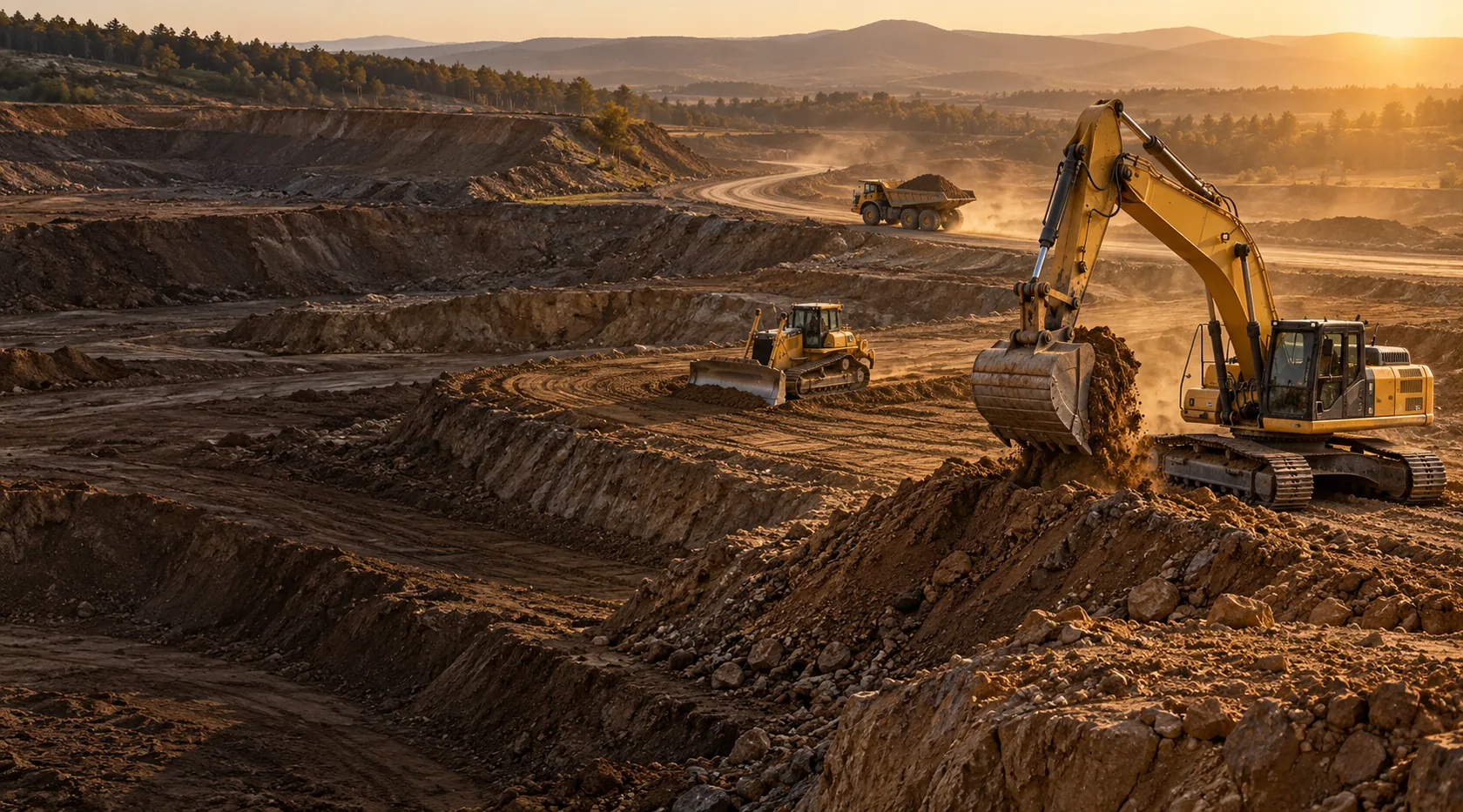
Expanded Jobs
Put weather and named work areas on the job.
See the forecast, draw the site, and record closeout by area. Add Expanded Jobs to Core Crew, or use it as part of Growing and Full, with existing seats.
What it does
Give the crew the same site context.
Name cut, fill, stockpile, and yard areas on the web map. Field crews can view the saved map with their assigned job.
Keep notes and detailed closeout tied to the right area.

A named area gives field notes and closeout the same place to refer to. Maps and area reporting use Expanded Jobs.
Job weather
Check the forecast where you plan the work.
Current conditions, the National Weather Service forecast, and active alerts sit on the job and assigned mobile jobs.
- Today, tomorrow, and the next 24 hours.
- Rain and snow potential.
- Wind, heat, and cold indicators.
- Active weather alerts for the site.
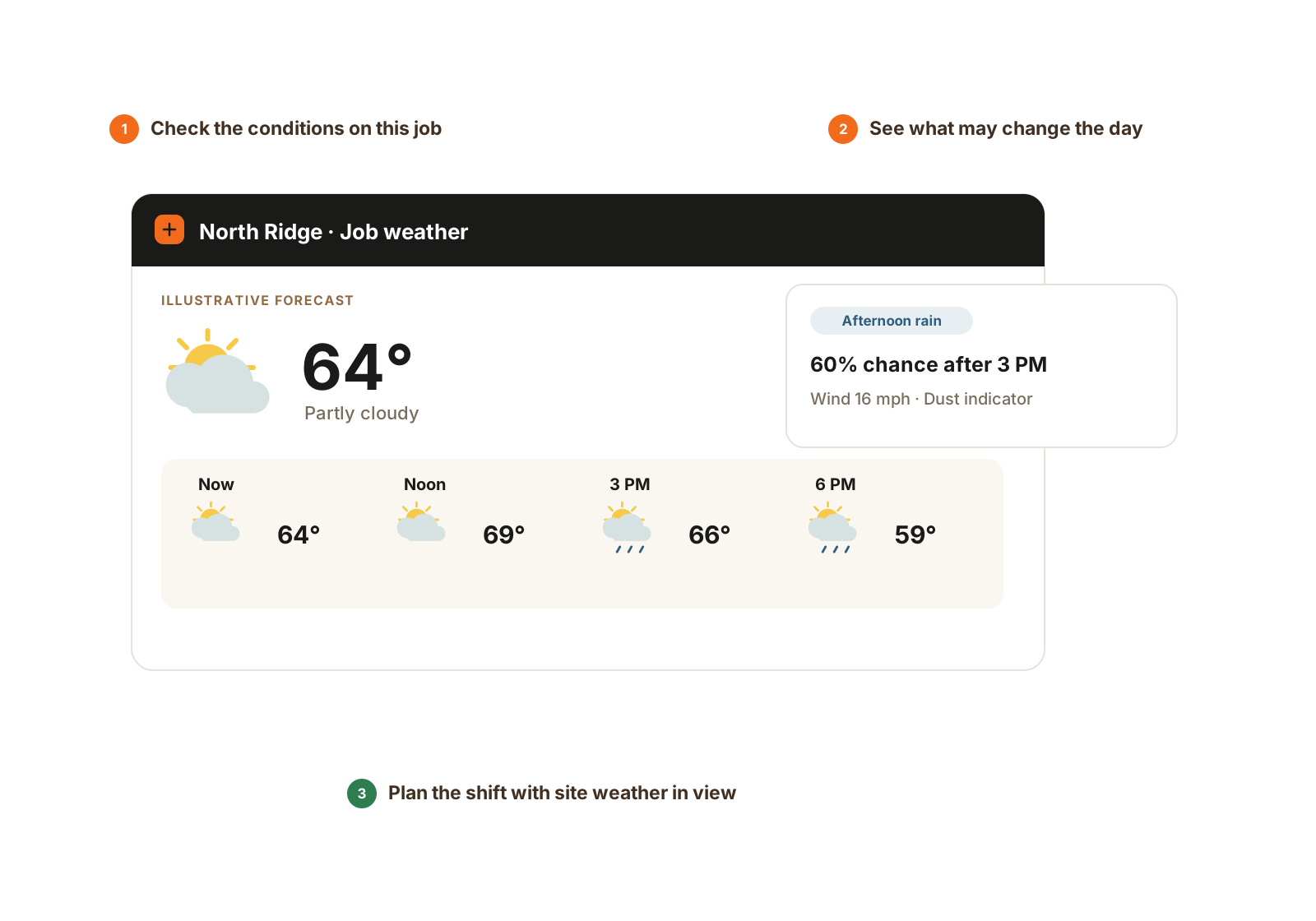
Current conditions, the forecast, and operational indicators belong beside the job. Available with Expanded Jobs.
- Check the job’s conditions.
- Review the forecast and indicators.
- Plan the shift with that context.
How it helps
Give “the west side” a name on the map.
Office users draw and name the work areas. Foremen view the same places in the field and attach the day’s context.
- Job boundaries and map objects.
- Named cut, fill, stockpile, and yard areas.
- Area-linked notes and advanced closeout.
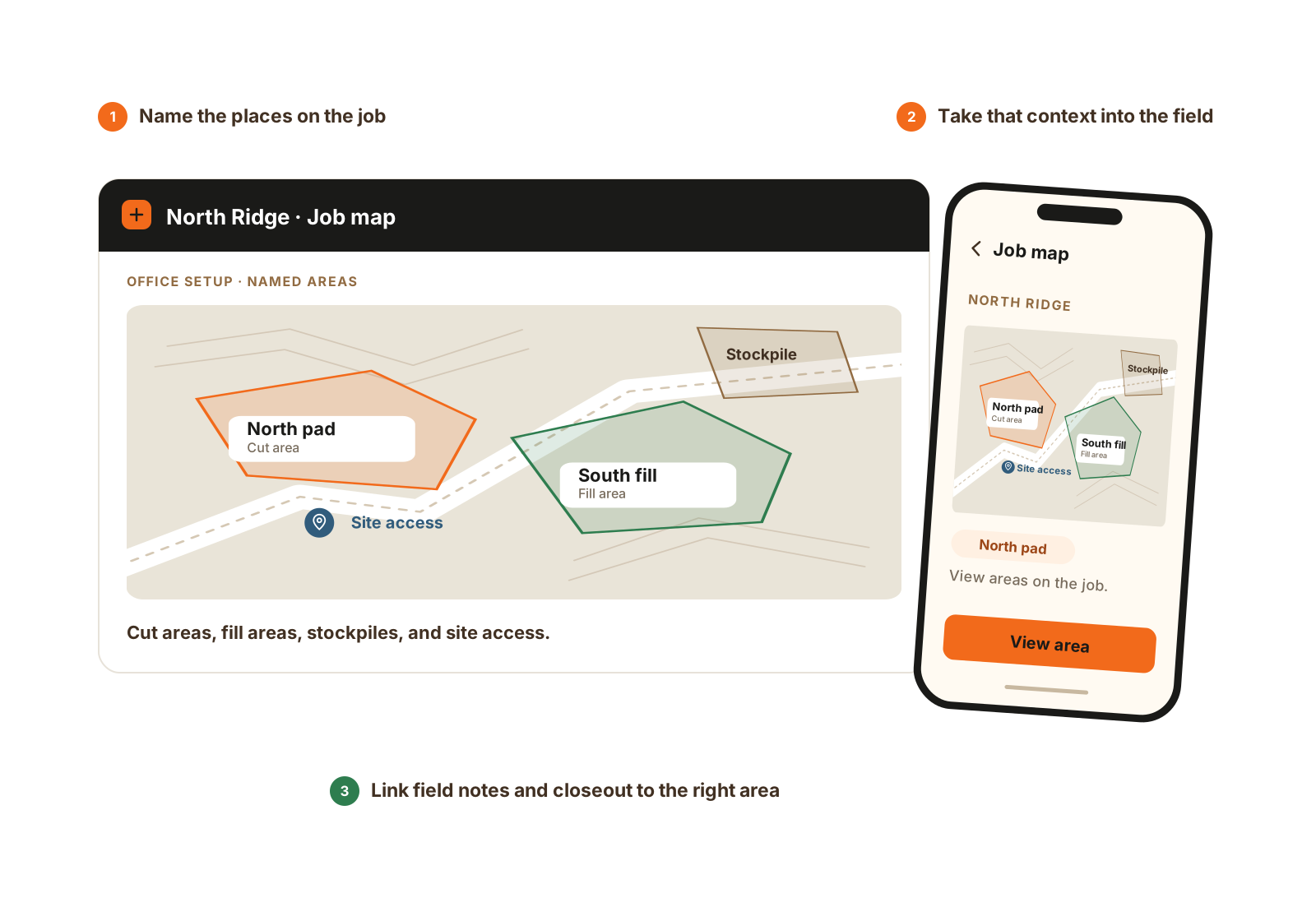
Name the areas in the office and view the same places in the field. Job maps and area-based reporting use Expanded Jobs.
- Draw and name areas on the web.
- View the saved map on the phone.
- Keep notes and closeout in the right area.
Worked example
Example: plan a weather-sensitive day by work area.
Illustrative use of the current job map, forecast, and detailed closeout. The forecast informs the person making the call; it does not automatically cancel work.
Locate and name the work
Set the job coordinates and save the map areas the crew uses, such as a cut, fill, stockpile, yard, or finish area.
Check the site forecast
Review today, tomorrow, the next 24 hours, and active alerts. The current National Weather Service source covers supported US locations; missing coordinates or unavailable data are not a usable forecast.
Record the field decision
If conditions change the plan, keep the relevant note and assignments with the job. A forecast indicator does not decide whether a crew works.
Close out the work by area
Keep the applicable detailed work lines, counts, and notes with the named area so the office can review where work happened and what remains.
Questions
Expanded Jobs
Does Core Crew include maps and weather?
Core keeps the job address and stored pin. Add Expanded Jobs for maps, weather, named areas, and advanced closeout.
How is the module included?
Add it to Core Crew using existing seats. Growing and Full include the module. We can confirm the complete configuration for your team.
Where does job weather come from?
The current source is the National Weather Service for supported US job coordinates. Missing coordinates, an out-of-coverage location, or a provider failure can leave fresh weather unavailable. The job record remains usable.
Does a weather indicator automatically call off the crew?
No. The forecast and moisture, dust, heat, and cold indicators support the foreman or owner’s planning. They do not automatically decide whether the job works or send a call-off.
Explore further
Related modules and pricing.
Walkthrough
Walk a live job onto the map
Bring one current job and the records your team uses. We’ll demonstrate the relevant workflow and confirm scope, seats, and price.
- Phone 720-772-8681
- Sales sales@cutfill.io
- General hello@cutfill.io
We’ll use these details to respond and focus the walkthrough on your operation.