Wheel loader, excavator, and dozer lined up in a contractor equipment yard at dawn

Platform

Plan in the office. Record the work in the field.

Jobs connect the crew, machines, hours, tasks, and field notes. The office reviews the shared record; each person in CutFill Field works within their role.

How it works

One job record. Tools for each role.

Office web app

Assign people and equipment, review job time, and follow field updates.

CutFill Field

Foremen manage assigned crews and closeout. Workers record their own time and task updates.

Access by role

Give each person the tools their job needs, within their seat and module access.

Add the workflows you need

Add maps, weather, Fleet Maintenance, or Material Tracking as your operation needs them.
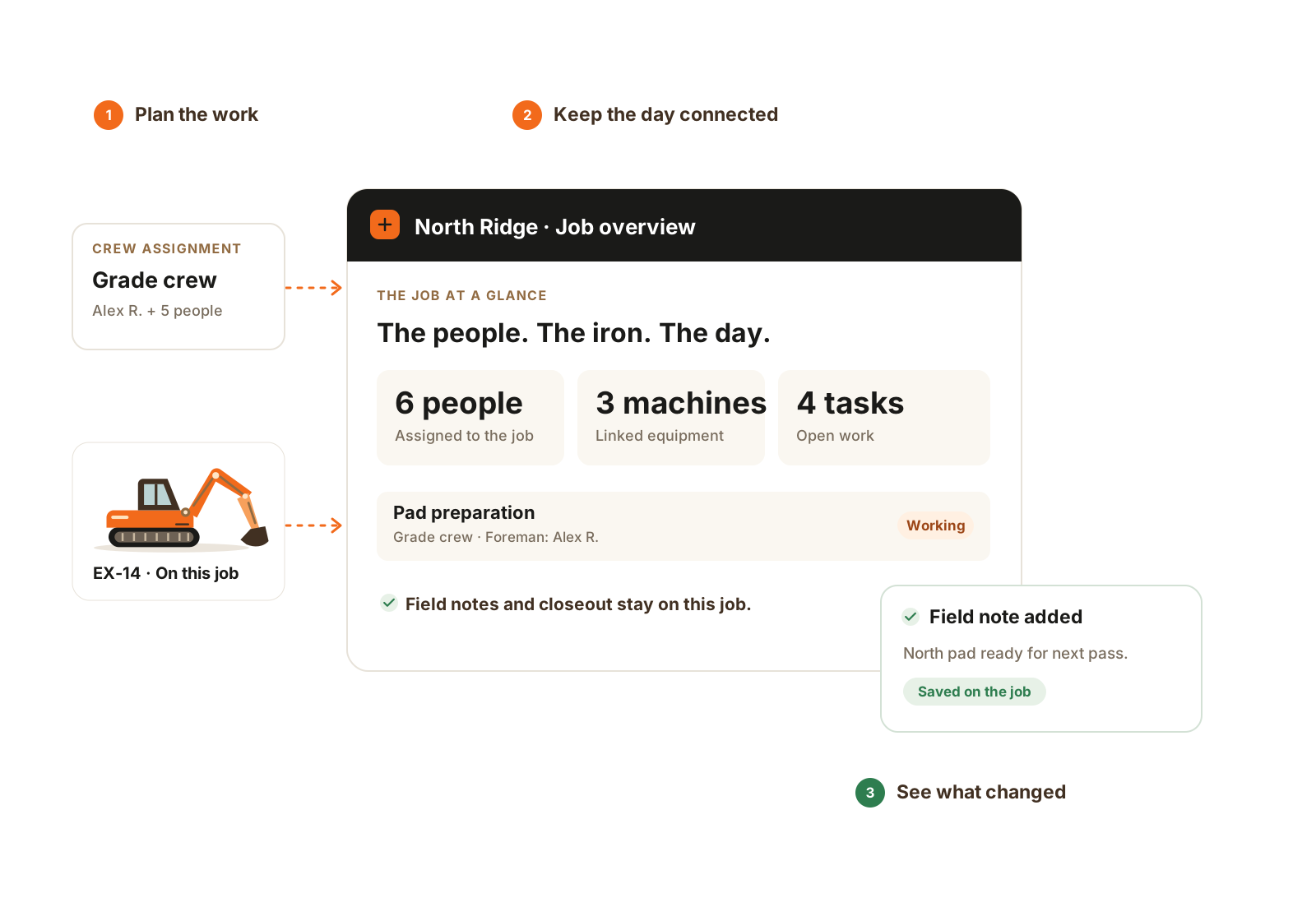
Jobs, crews, equipment, and field updates connect to the same North Ridge job record in a shared office view.

The crew, equipment, tasks, and field record stay connected to the same job.

  1. Assign the people and equipment.
  2. Keep the work on the job.
  3. See the field update in context.

Platform fit

Keep the job record together.

DecisionWith CutFillAcross separate tools
Daily plan

People, equipment, and tasks connected to the job.

Assignments maintained across a board, lists, and messages.

Field record

Hours, photos, notes, and closeout kept with the work.

Updates collected and matched back to the job manually.

Office review

Review the saved record before planning the next shift.

Ask each person for the part of the day they recorded.
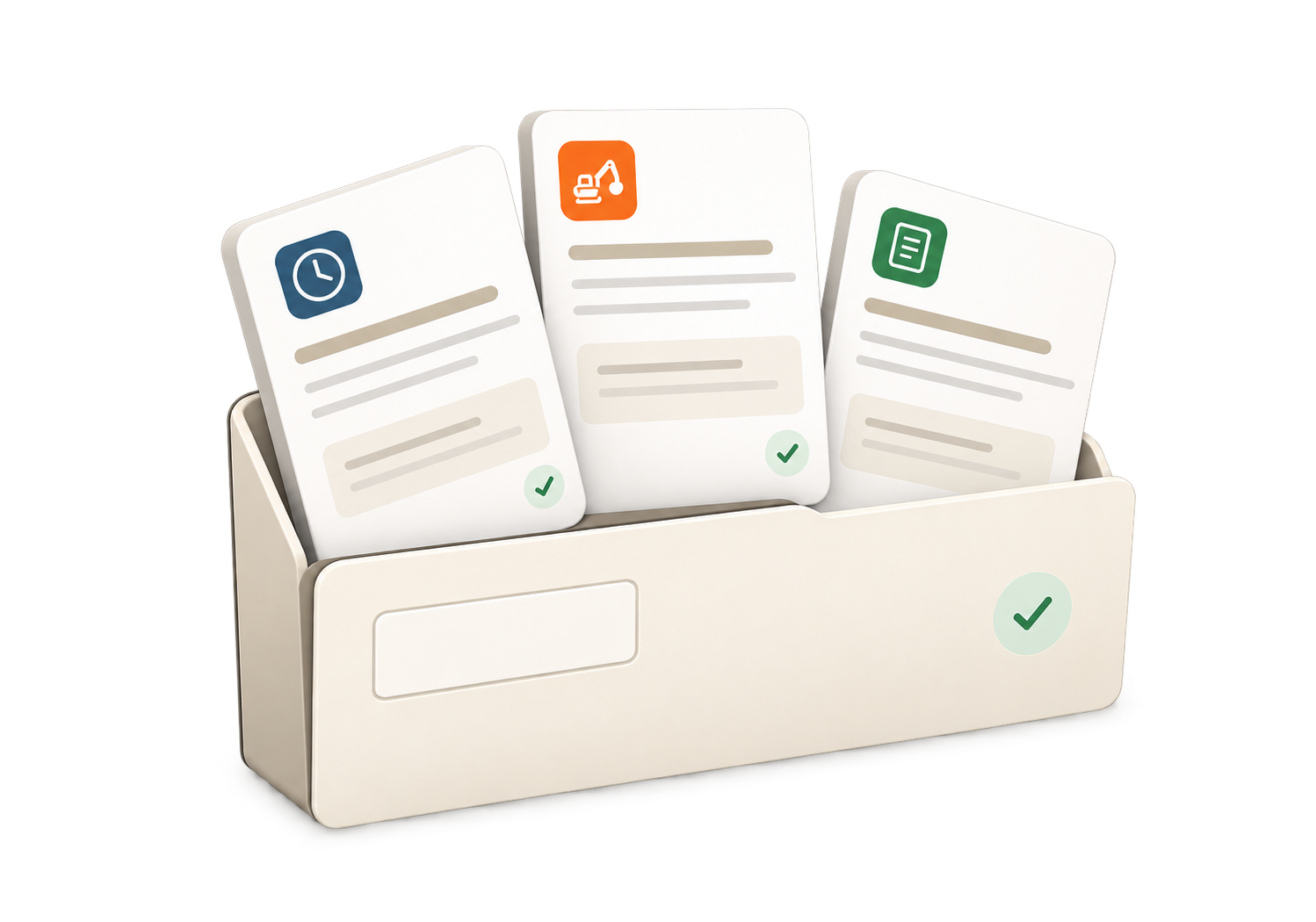
A dimensional ivory job folder holds thin illustrated time, equipment, and ticket records.

Keep the job, its time, equipment, and field records together so the office can work from what happened.

The details that matter

Follow the record from field entry to office review.

A shared job record is useful because each entry answers a different operating question. These records work together without treating one as a substitute for all the others.

Plan and responsibility
The job holds the people, equipment, and tasks assigned to the work. Foremen see the jobs and crews they support; workers use their own assigned work and time tools.
Time and daily work
A clock entry records time. A foreman closeout records the job-day’s work and context. Entered machine hours belong to the equipment record. Comparing them helps the office ask a specific follow-up question.
Specialist records
Fleet Maintenance adds the repair and service record. Material Tracking adds orders, tickets, water usage, and live import/export unit cost. Module access follows the account and seat configuration.
The next review
Open the relevant job, machine, or order to review the supporting entries. Accounting and estimating remain in their own tools; broader production and job-cost dashboards are still planned.

Daily context

Keep the outside people and the record of the job within reach.

Companies, contacts, and locations
Keep outside businesses, the people who work there, and reusable places as separate directory records. Link the relevant customer and site to the job without rebuilding their details in every note.
Notes and activity
Job Notes keep authored text and images. Activity links back to recorded events such as closeouts, service visits, job service sessions, and supply refills, so the office can open the supporting record.
Tools for the person’s role
The office, foreman, worker, and shop views follow the person’s access. Field capture stays focused on the work the person is responsible for rather than exposing every administrative tool.

Add-on modules

Add the workflows your crew needs.

Start with your subscription, then add the specialist workflows your operation needs. Explore the records, responsibilities, and field tools behind each module.

Expanded Jobs

Give the crew the same map, forecast, and work-area context before the shift starts.

  • Draw job boundaries and name cuts, fills, stockpiles, yards, and finish areas.
  • View saved maps in the field and check the site’s National Weather Service forecast.
  • Keep detailed closeout work lines and applicable counts tied to the right area.

Add to Core Crew; included on Growing Operation and Full Operations. Uses existing seats.

Learn more
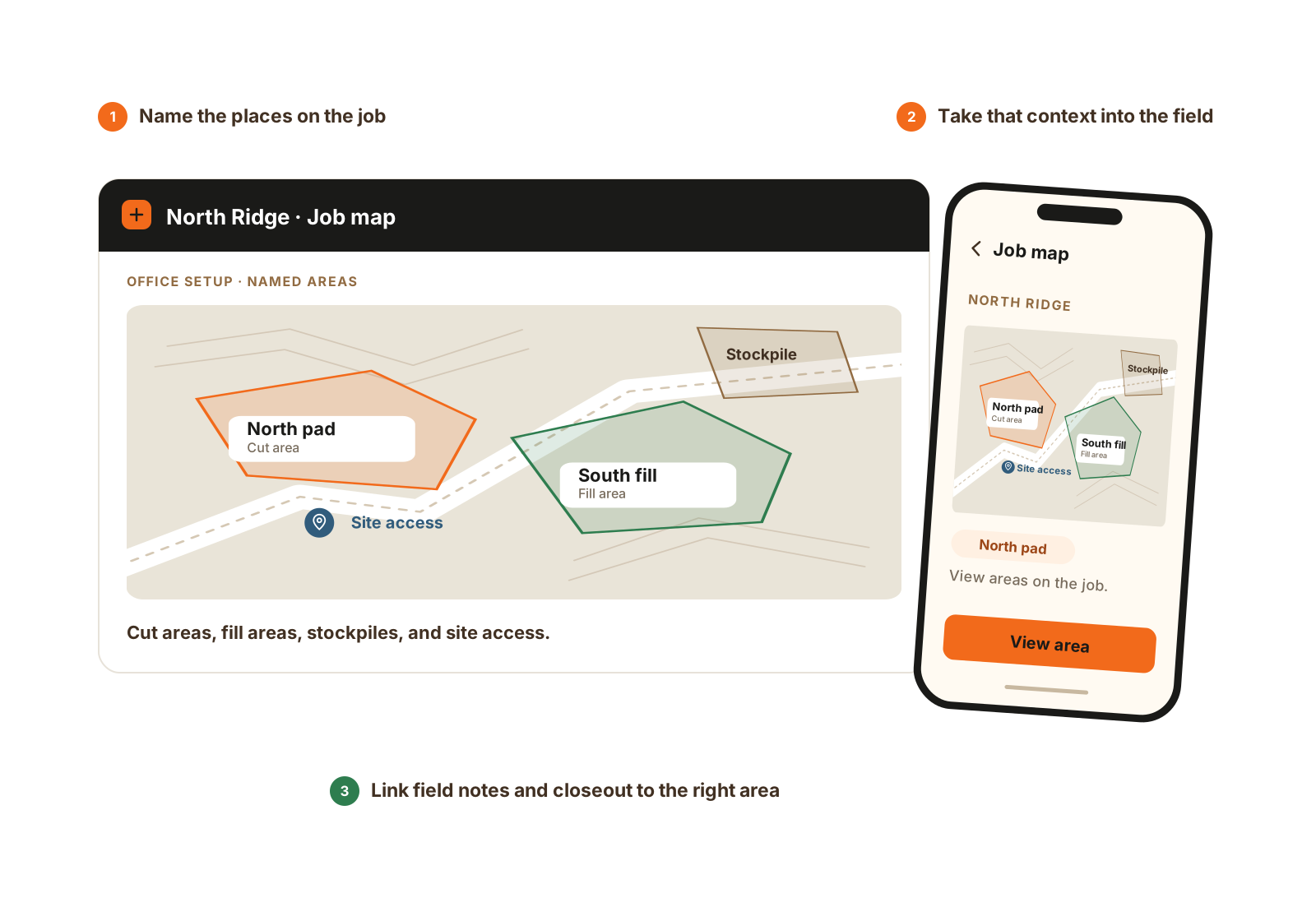
Named cut, fill, and stockpile areas appear on an illustrated job map; a phone shows the office-created map in the field.

Name the areas in the office and view the same places in the field. Job maps and area-based reporting use Expanded Jobs.

  1. Draw and name areas on the web.
  2. View the saved map on the phone.
  3. Keep notes and closeout in the right area.

Expanded Ops

Turn the office’s working lists and time-clock policies into shared company tools.

  • Share saved filters and display fields while respecting each person’s record access.
  • Set custom roles and company-owned options within existing seat and module limits.
  • Optionally require a location fix at clock actions or reasons from your own clock-in/out lists.

Add to Core Crew; included on Growing Operation and Full Operations. Uses existing seats.

Learn more
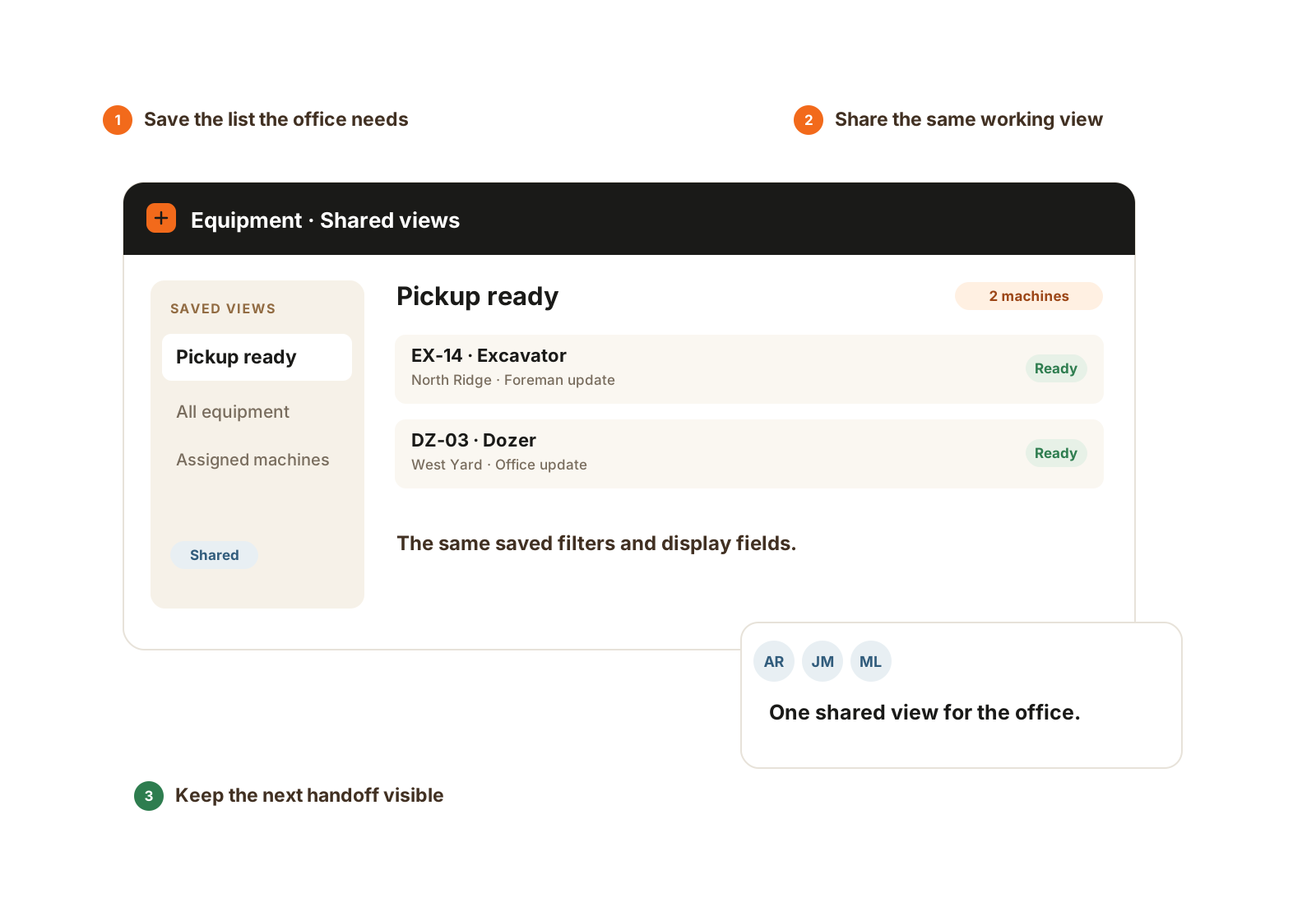
A saved shared equipment list lets office users review the same pickup-ready machines with the same filters.

A shared saved view gives the office the same working filters and fields. Each person’s existing access still applies.

  1. Save the working list.
  2. Share its filters and display fields.
  3. Keep the next office handoff clear.

Fleet Maintenance

Connect the field report, the person responsible for the repair, and the machine’s service history.

  • Report issues with notes and photos, then assign field or shop work orders.
  • Keep diagnosis, waiting-on-parts updates, and completed service with the equipment.
  • Record routine machine visits, fuel, fluids, meter readings, and job service sessions.

Add to Core Crew or Growing Operation; included on Full Operations. Includes one mechanic/oiler seat.

Learn more
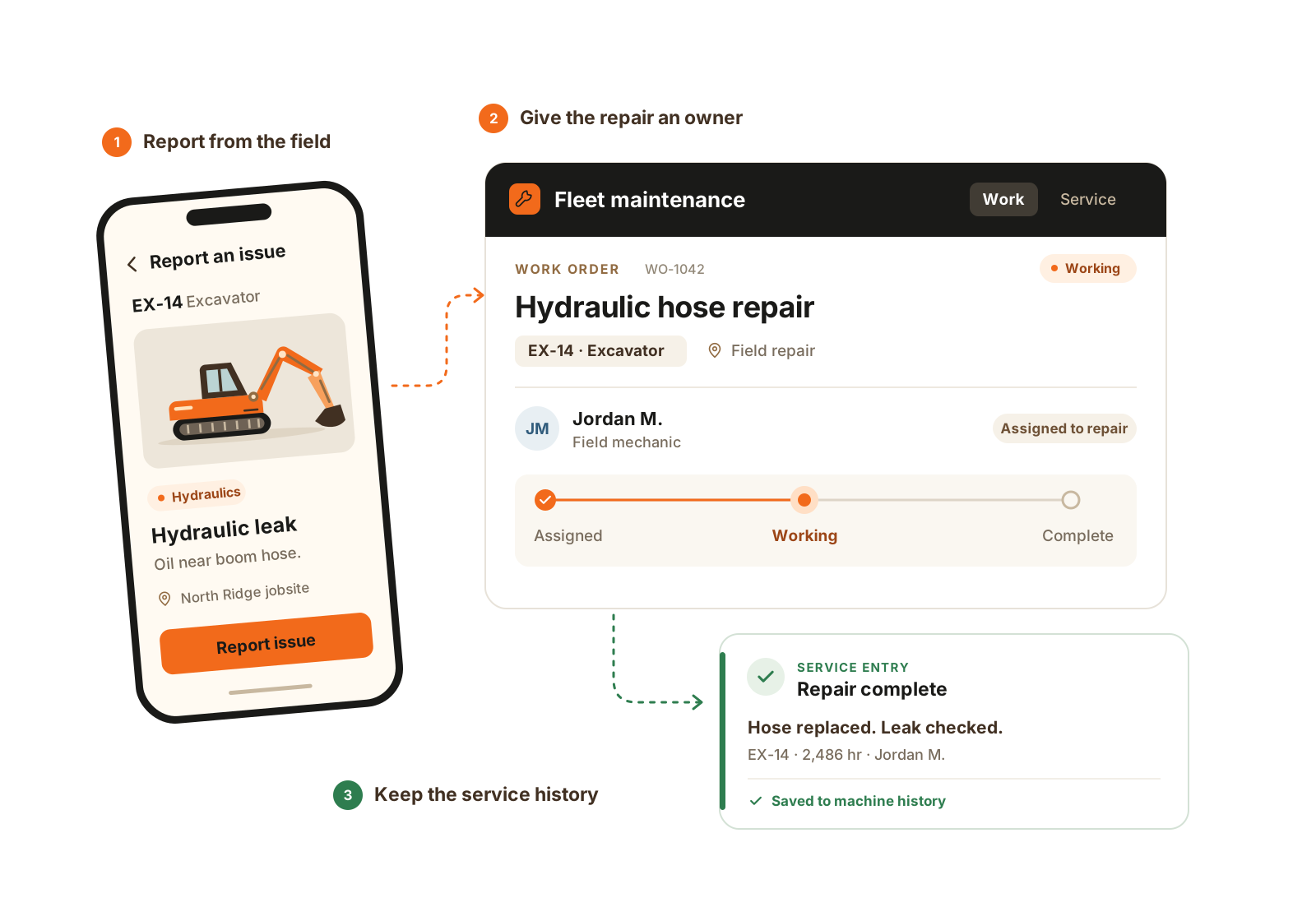
A field issue report becomes an assigned repair work order, then a completed entry in the excavator’s service history.

A field report becomes owned repair work, then a service record that stays with the machine.

  1. Report the machine issue.
  2. Assign and manage the repair.
  3. Record the completed service.

Lowboy Dispatch

Coordinate an equipment move from the job’s ready signal through the driver’s completed dropoff.

  • Queue a move from a job, company location, or one-off address to the next stop.
  • Schedule the move and assign the driver, tractor, and trailer from the office.
  • Follow driver move stages and update the equipment’s place when the move completes. State changes require a connection.

Included on Full Operations; available as an add-on on Core Crew and Growing Operation. Includes one driver seat.

Learn more
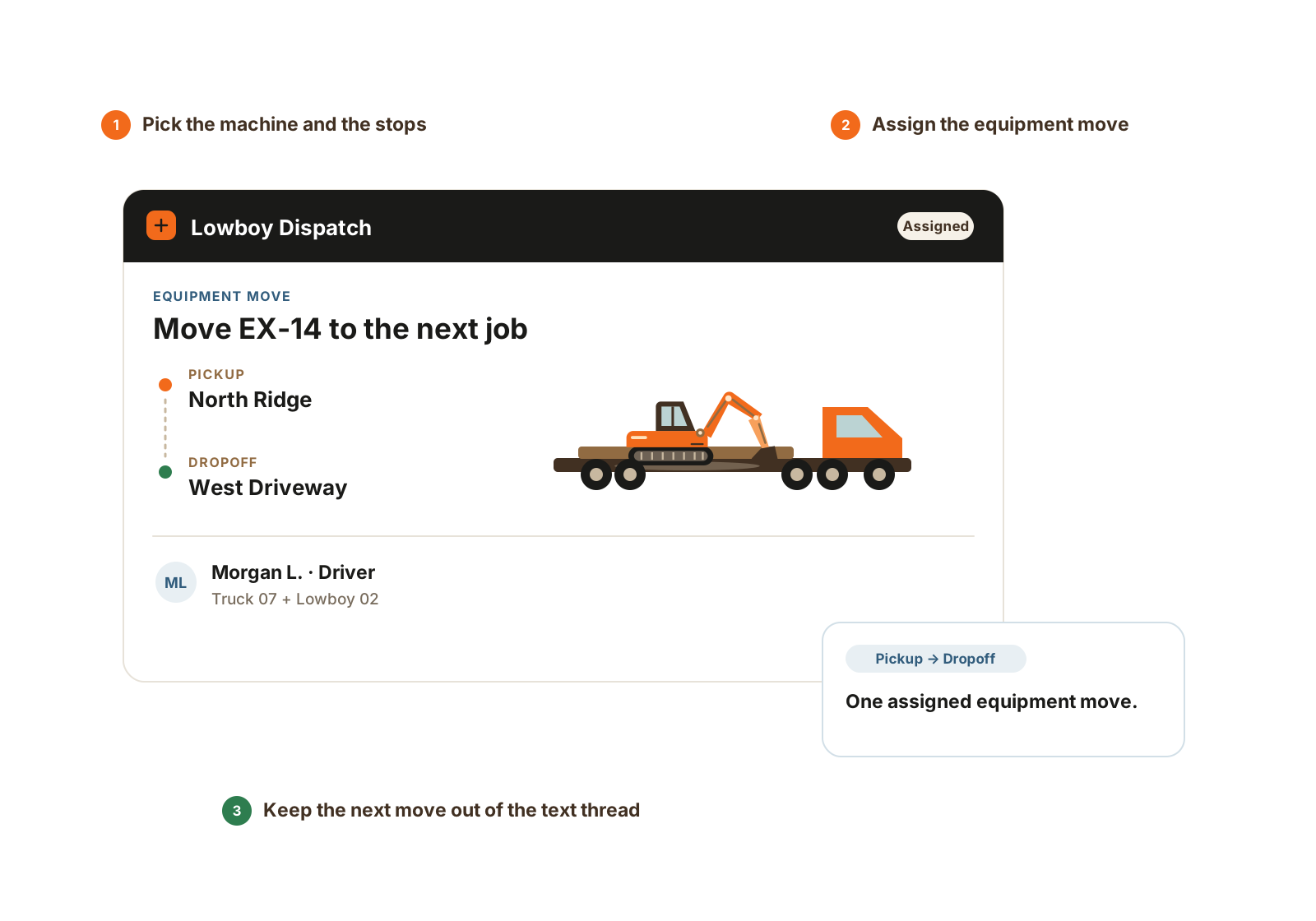
A Lowboy Dispatch workflow connects pickup-ready equipment to an assigned driver and specified pickup and dropoff stops.

The requested machine, driver, pickup, and dropoff stay together. State changes require a connection.

  1. Queue the machine and stops.
  2. Schedule and assign the move.
  3. Record driver progress and completion.

Material Tracking

Keep the order, the ticket evidence, and the quantity the job actually accepted together.

  • Create import or export orders with fixed targets or open-ended product lines.
  • Log source, destination, carrier, quantity, unit, acceptance, and ticket photos.
  • Track delivered water or hydrant-meter readings, then review interval usage and owner/admin cost coverage.

Available as a separate add-on on every base plan. Existing office and foreman seats do the work.

Learn more
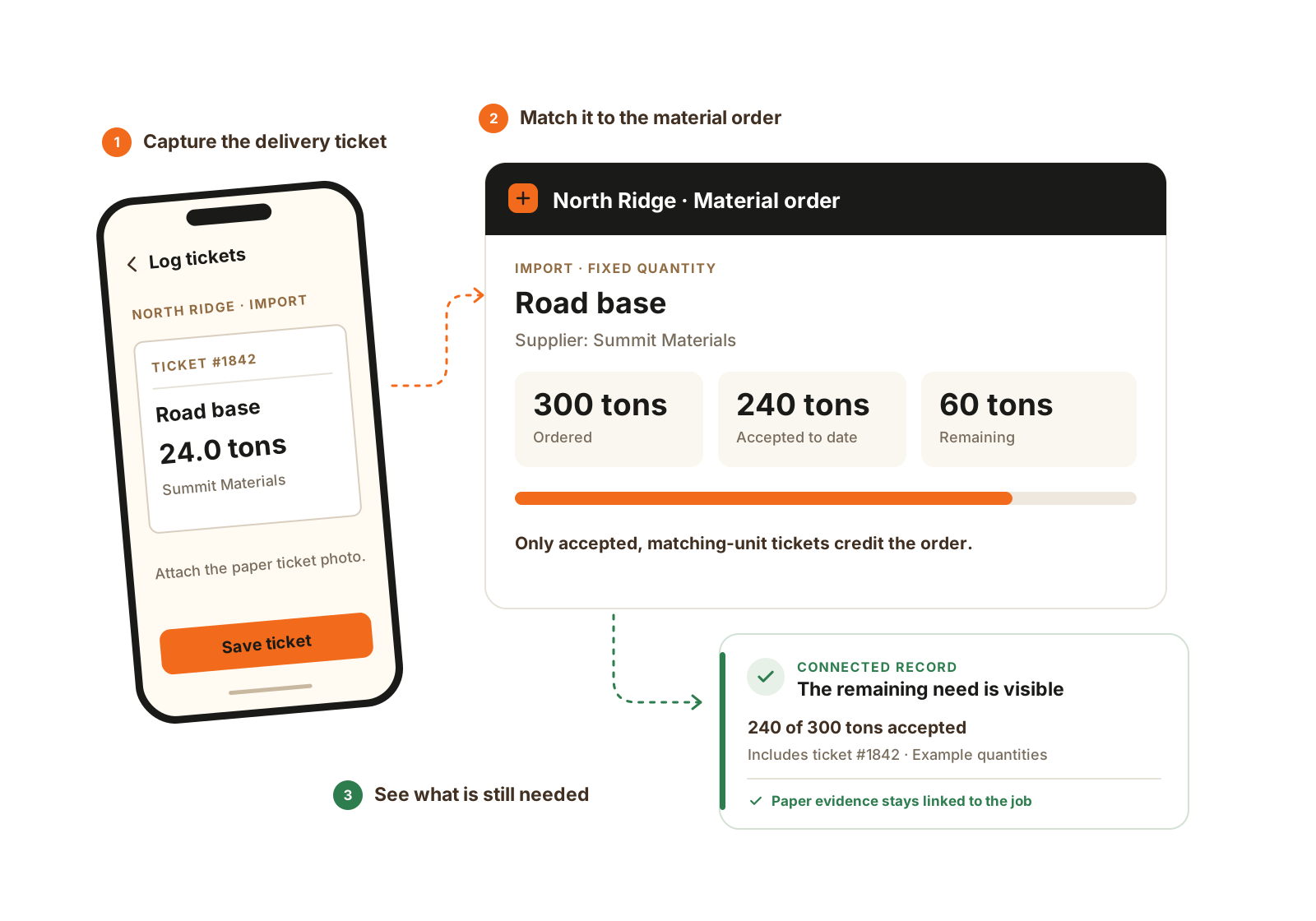
A foreman logs a 24-ton material ticket, which contributes to the accepted quantity against a 300-ton fixed material order.

Material Tracking keeps the order and its tickets together. Accepted tickets credit a fixed order so the remaining quantity stays visible.

  1. Record the delivery ticket.
  2. Link it to the material order.
  3. Review accepted quantity and remaining need.

Questions

Platform fit

Can we keep our estimating and accounting tools?

Yes. CutFill covers daily operations. Your existing tools still handle estimates, invoices, payments, and payroll.

Can we start with a small crew?

Core Crew includes 5 role-specific seats. Add people or modules when you need them; compare the included roles and workflows on Pricing.

What can a worker see?

Workers see their assigned work and personal time. Foremen have tools for the crews and jobs assigned to them; office access follows the account’s roles.

Do we need every module to get started?

No. Core Crew includes jobs, tasks, people and equipment assignments, time, notes, and simple closeout. Add Expanded Jobs, Expanded Ops, Fleet Maintenance, Lowboy Dispatch, or Material Tracking for the workflows you need.

Walkthrough

Walk through a job your crew runs.

Show us your current assignment sheet and field updates. We’ll demonstrate the relevant records and confirm pricing for your crew.

We’ll use these details to respond and focus the walkthrough on your operation.