Shared views
Share useful filters and display fields for the lists the office runs.
 Request demo

Expanded Ops
Share saved views, define custom roles, use your company’s options, and configure the clock policy. Add to Core Crew or use it as part of Growing and Full with existing seats.
What it does
Save a working jobs, tasks, or equipment view and share its filters and fields with the office.
Set roles and options around the work people do. Existing seat and module limits still apply.
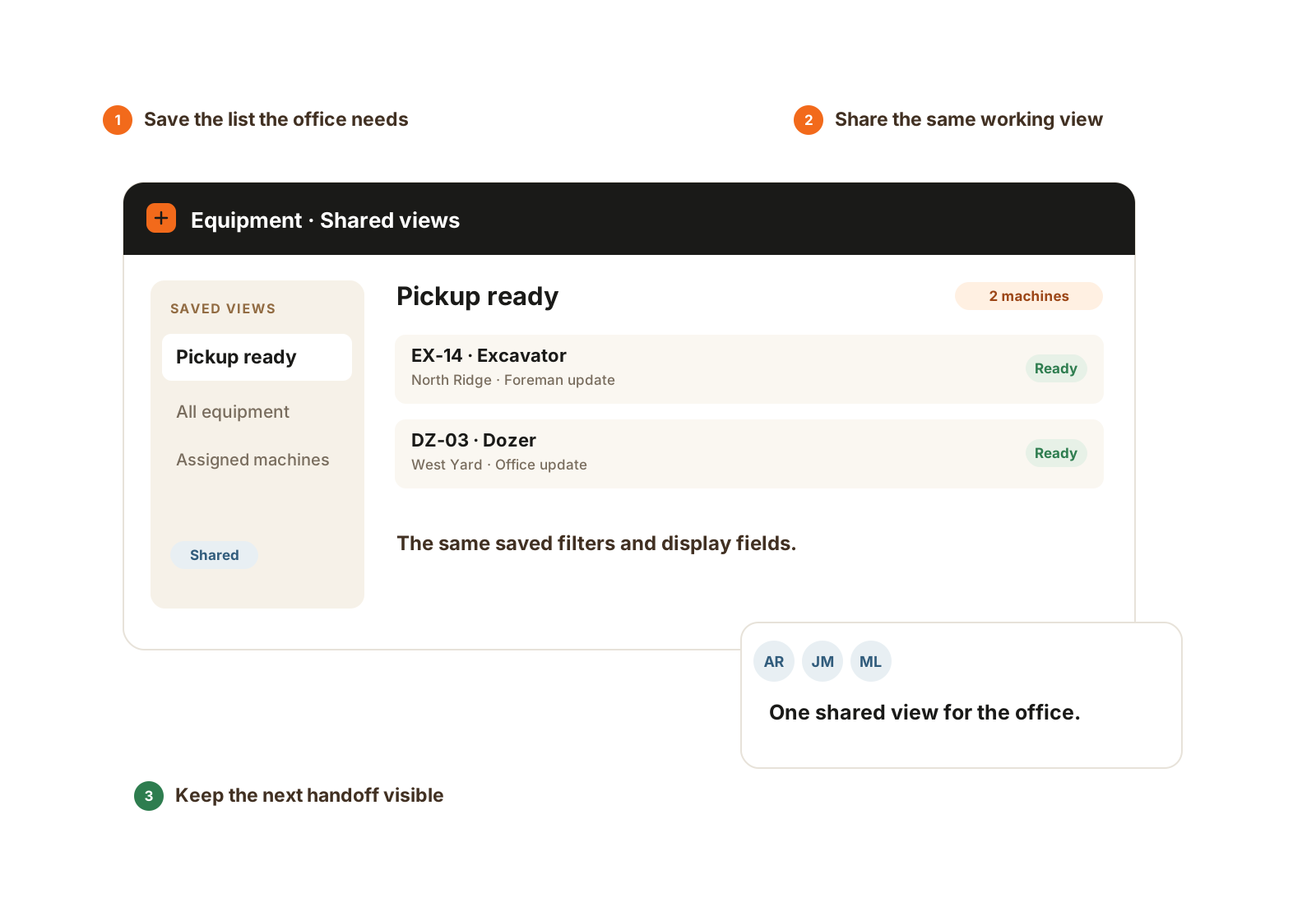
A shared saved view gives the office the same working filters and fields. Each person’s existing access still applies.
Inside the module
Share useful filters and display fields for the lists the office runs.
Match access to office and shop responsibilities.
Use your own supported types and options in the records.
Add company clock reasons and a GPS-fix requirement when needed.
With and without
Shared views with the same filters and fields.
Private saved views for each person.
Custom roles within paid seat and module limits.
Product roles.
Supported company-specific options and clock reasons.
Standard product options.
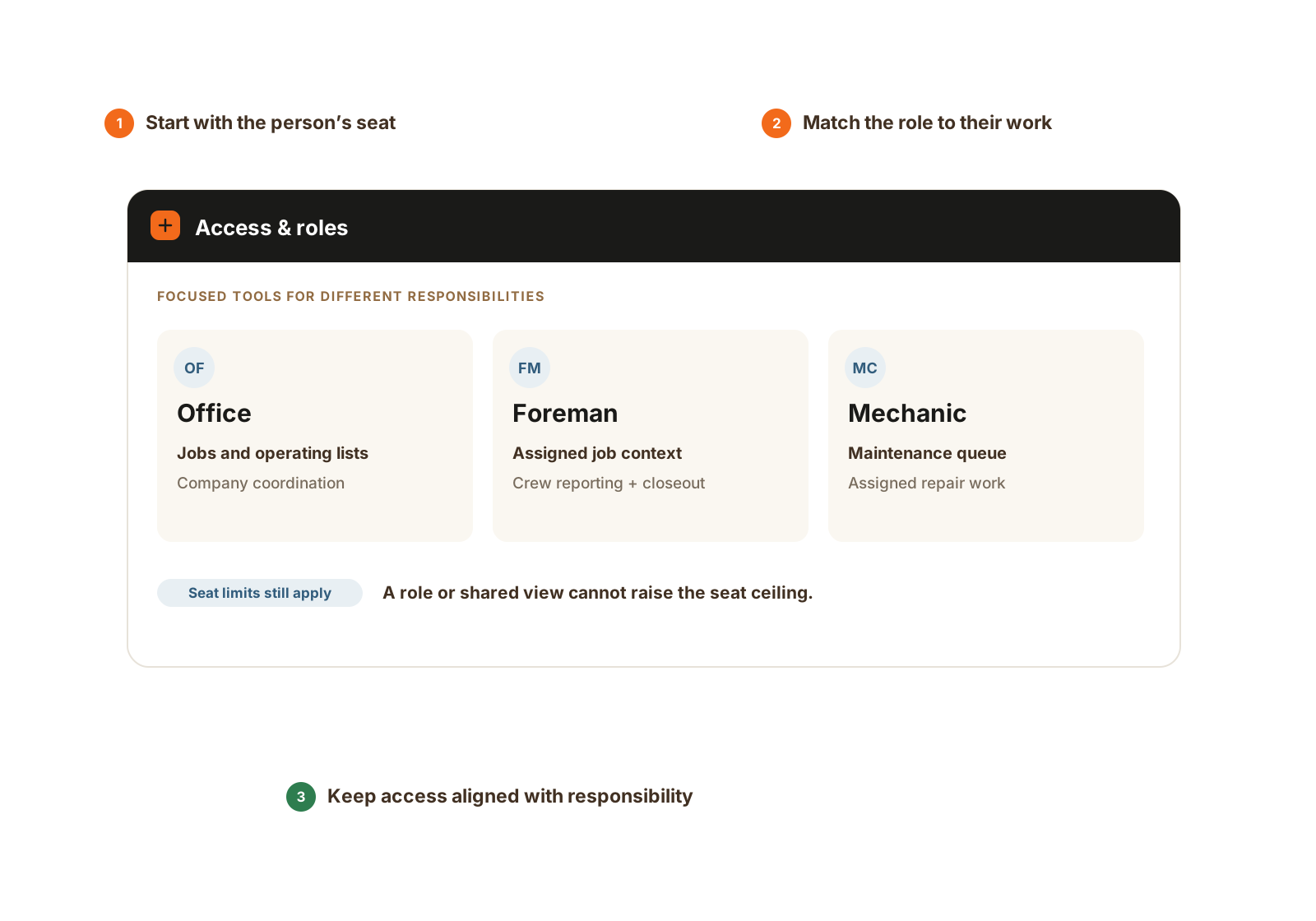
Focused tools for office, foreman, and mechanic responsibilities. Module requirements, seat limits, and record permissions still apply.
The details that matter
Expanded Ops adds optional GPS and reason controls alongside shared views, custom roles, and company options. Both controls start off and can be enabled independently.
Questions
Yes. Expanded Ops adds account-shared views and custom roles; Core retains private views and product roles.
Add it to Core Crew using existing seats. Growing and Full include the module. Ask us to map it to the office and field roles you need.
Core has the standard clock without these optional controls. Expanded Ops adds the ability to require a phone location fix and clock reasons. Growing and Full include Expanded Ops; Core can add the module.
No. The clock location is a point stored at the action. CutFill does not keep a continuous location trail or test the point against a job boundary through this setting.
Explore further
Walkthrough
Bring one current job and the records your team uses. We’ll demonstrate the relevant workflow and confirm scope, seats, and price.
We’ll use these details to respond and focus the walkthrough on your operation.