

Field workflow guide
No signal should not mean rebuilding the day from memory.
Load assigned work while connected, save supported updates on the phone, and confirm they reach the office after reconnection.
By CutFill · Updated
What offline means in CutFill Field
- View loaded work
- Previously synced assignments remain available. New work needs a connection to reach the phone.
- Save supported updates
- Time, attendance, task status, field notes, and daily closeout support offline capture within the person’s assigned access.
- Check office receipt
- A local save reaches the office after reconnection and successful sync.
- Connect for fresh data
- Initial sign-in, new assignments, live weather, and accounting connections require service.
An example day at a remote jobsite
Illustrative field workflow.
Before leaving service
Sign in and load the assigned job, people, machines, and tasks.
During the shift
Save time, task updates, and notes. An open form is not a saved record.
At closeout
Save the job-day record and remaining blockers.
Back in service
Review sync activity, resolve failed updates, and confirm the office received the records.
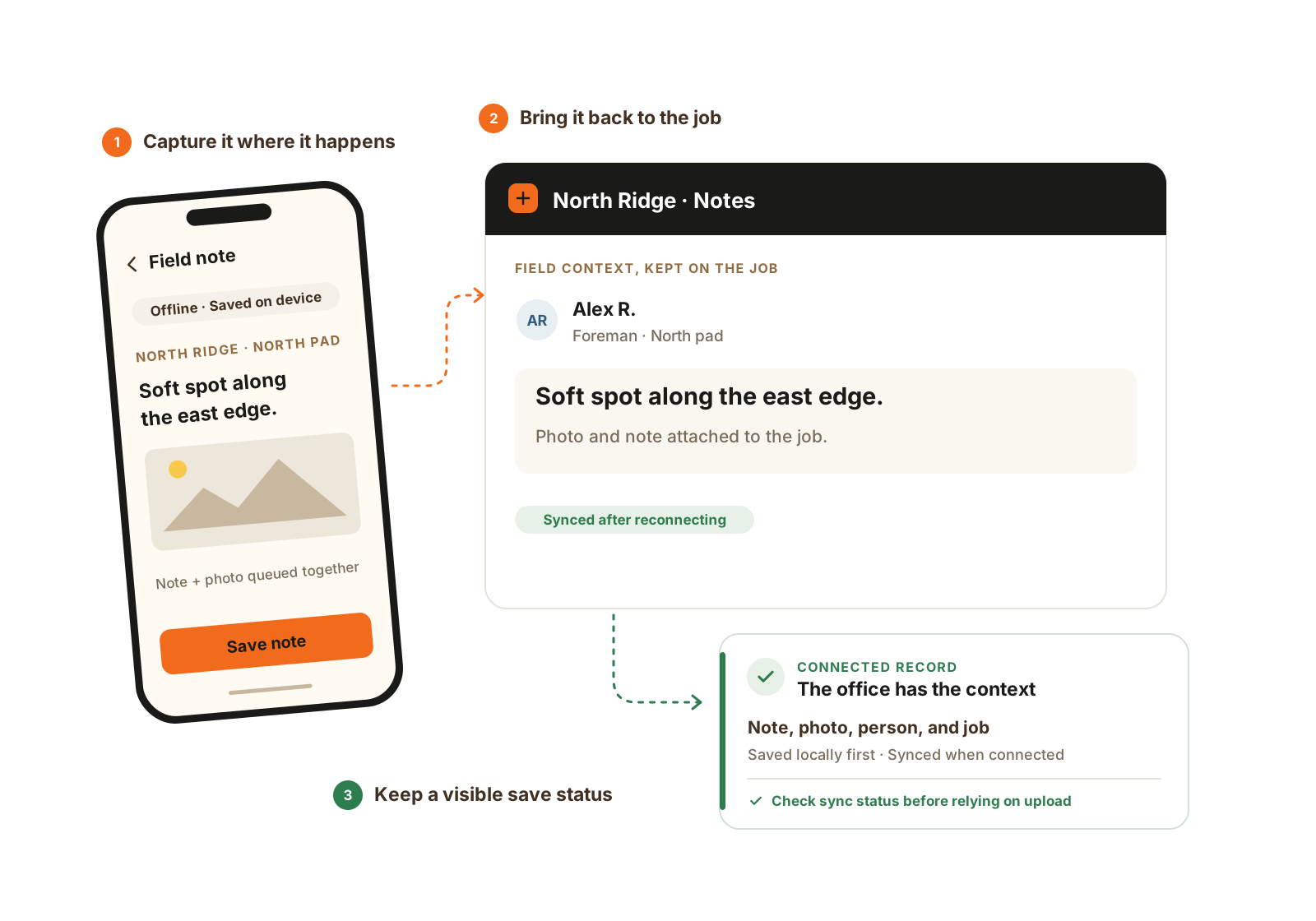
Capture supported notes and photos locally. The office sees them after connectivity returns and sync succeeds.
- Save the note on the phone.
- Reconnect and check sync activity.
- Confirm the update reached the job record.
The details that matter
Make a remote-site trial match your actual day.
Use one foreman account and one worker account with the access they would have in the field. A connected admin demonstration does not answer every field question.
- Load before leaving service
- Sign in, open the assigned job, and confirm the people, equipment, and tasks needed for the shift are available. Test the records your crew will use, not only the home screen.
- Save, then check the queue
- For each supported offline action, complete the save and inspect its pending or failed state. An unsaved form or a phone-only entry is not yet an office record.
- Reconnect and compare
- Find the update on the office job record after successful sync. Check the job, date, person, and entered details. Resolve failed records before relying on the day as complete.
- Include configured clock rules
- If Expanded Ops requires GPS, a punch needs a location fix at the moment it is confirmed, including an offline punch. A failed fix is not saved for later; test permissions and site conditions before rollout.
Before using it on a remote job.
Does a local save mean the office has the update?
No. The phone must reconnect and successfully sync.
Can a new assignment arrive while the phone is offline?
No. Previously loaded work remains available; new information needs connectivity.
What should we demonstrate first?
Load a job, disconnect, save a supported update, reconnect, and find the same update in the office. Include a failed sync and its recovery.
Does offline support mean live weather stays current?
No. Fresh weather needs connectivity. A previously cached forecast can remain visible with its update time, so check when it was fetched before using it for planning.
Should we assume every attachment and module action works offline?
No. Demonstrate the exact form, attachment, and module workflow your crew needs. The supported time, attendance, task, note, and closeout saves do not establish offline support for every action in the product.